User guide
Client guide
What your clients see when they book and in their account.
1Booking an appointment
Open the booking page. Start by finding a time, choosing a practitioner or choosing a service, then follow the steps: location, date and time, practitioner, service and extras, your details and payment.
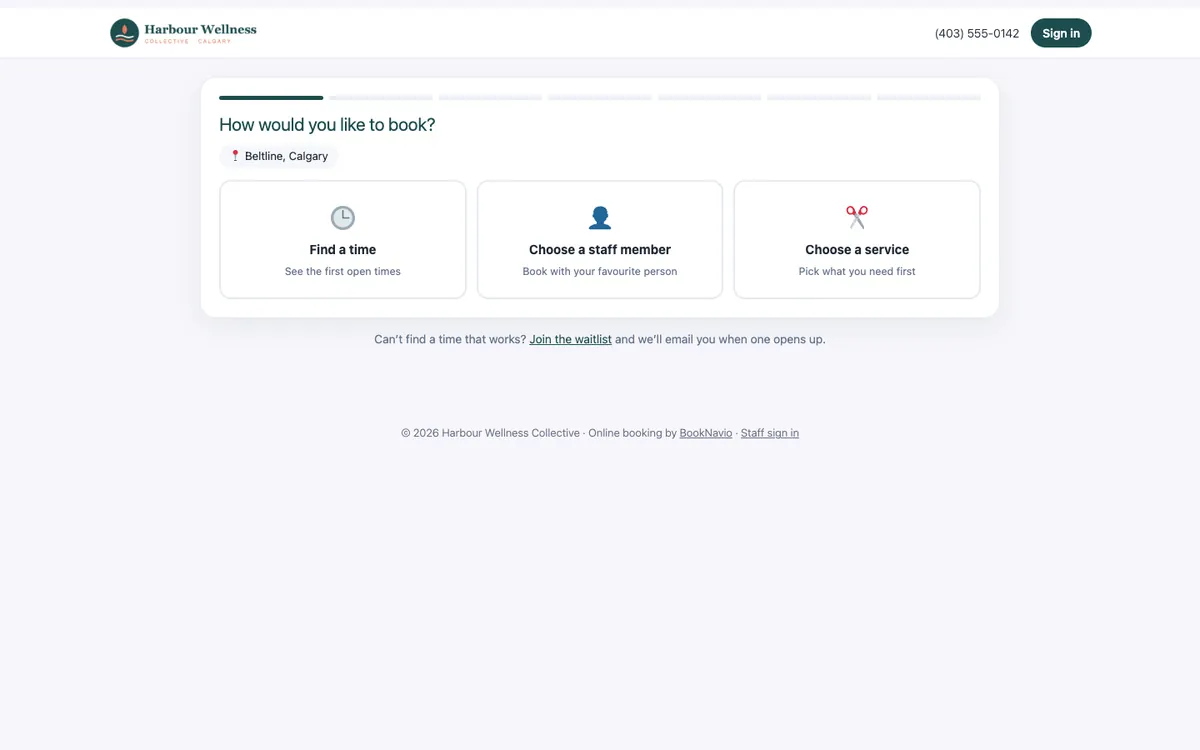
- New clients get an account automatically and are emailed a link to set their password.
- Can’t find a time that works? Join the waitlist and you’ll be emailed when one opens up.
2My appointments
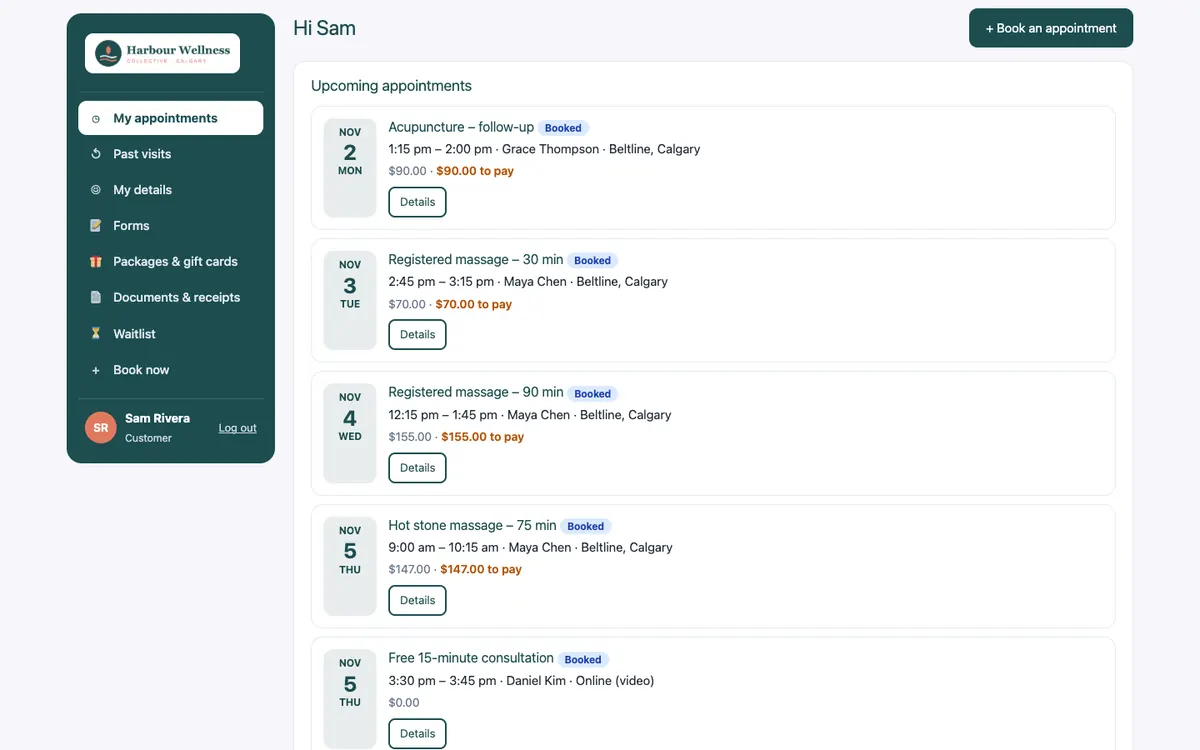
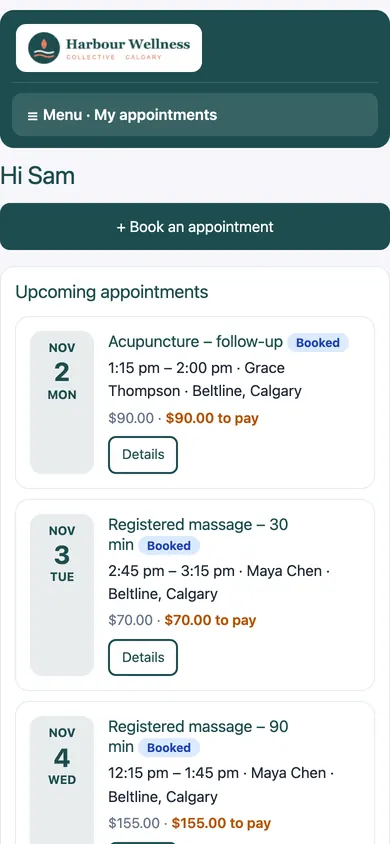
After signing in you see your upcoming appointments. Press Details to see the appointment, pay what is owed, add it to your calendar, join a video visit, or move or cancel it within the practice’s rules.
3Past visits
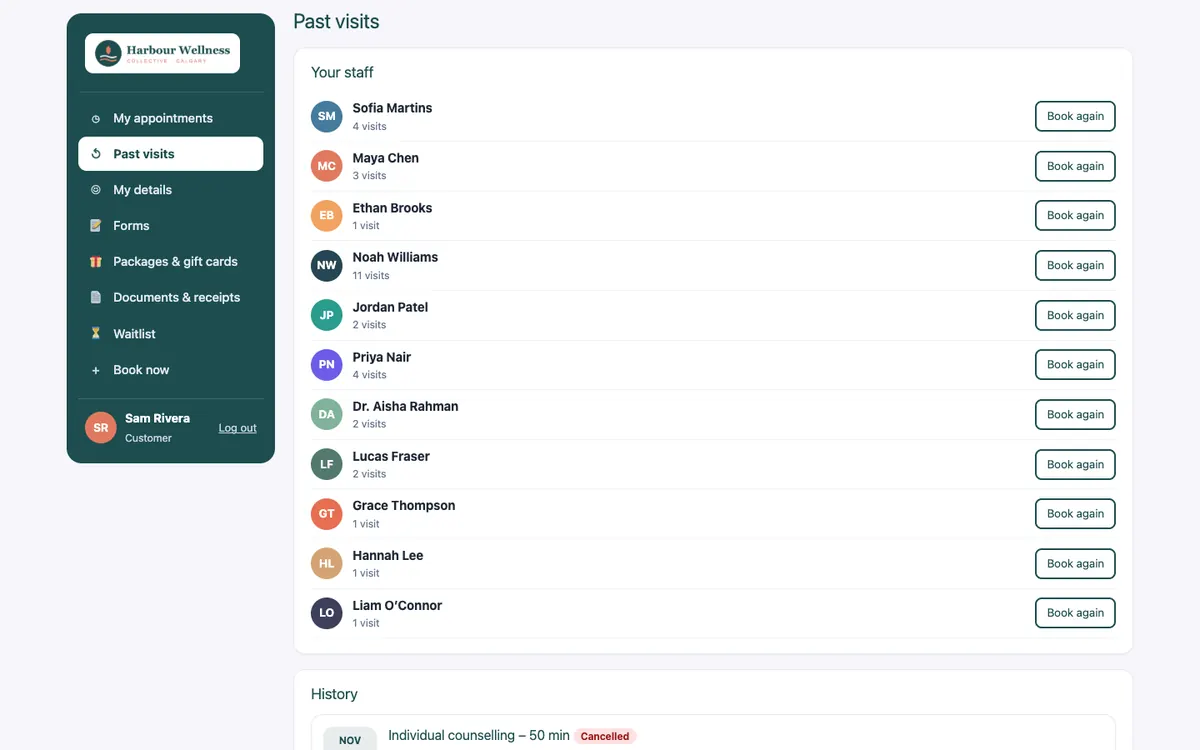
Every past visit with the practitioner you saw, and a Book again button.
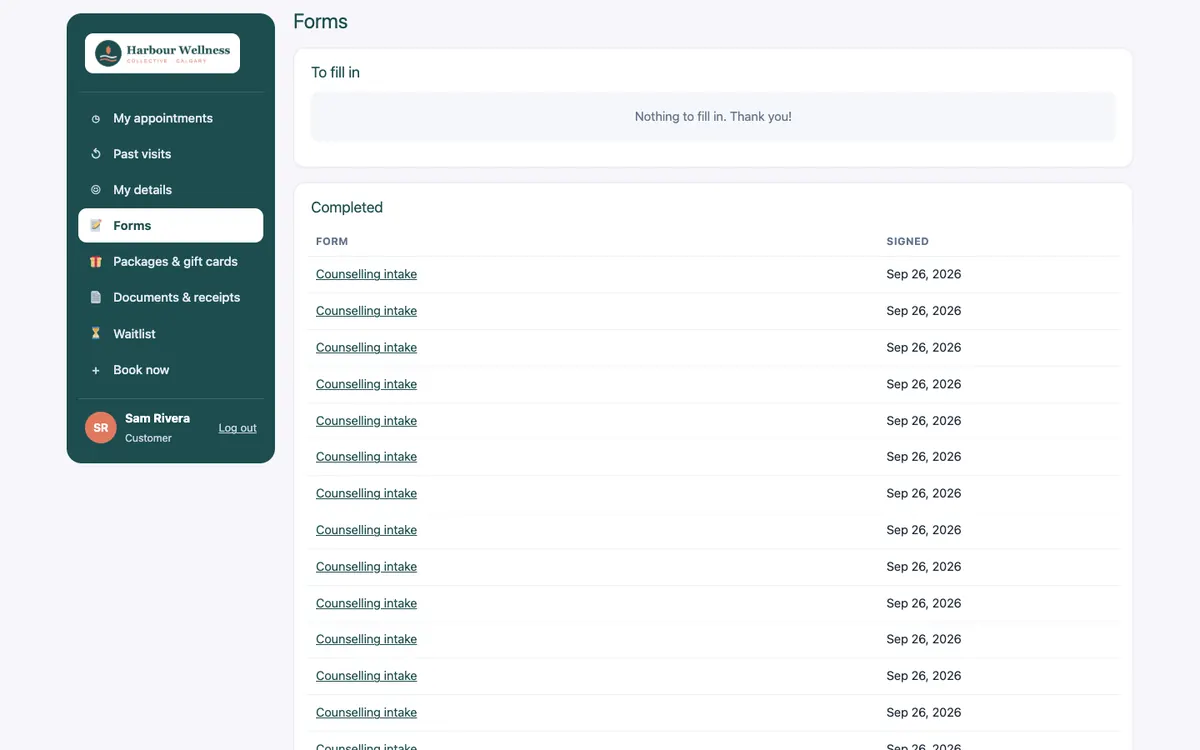
4Forms
Intake, health history and consent forms to fill in and sign before your visit. Forms you’ve completed are kept here.
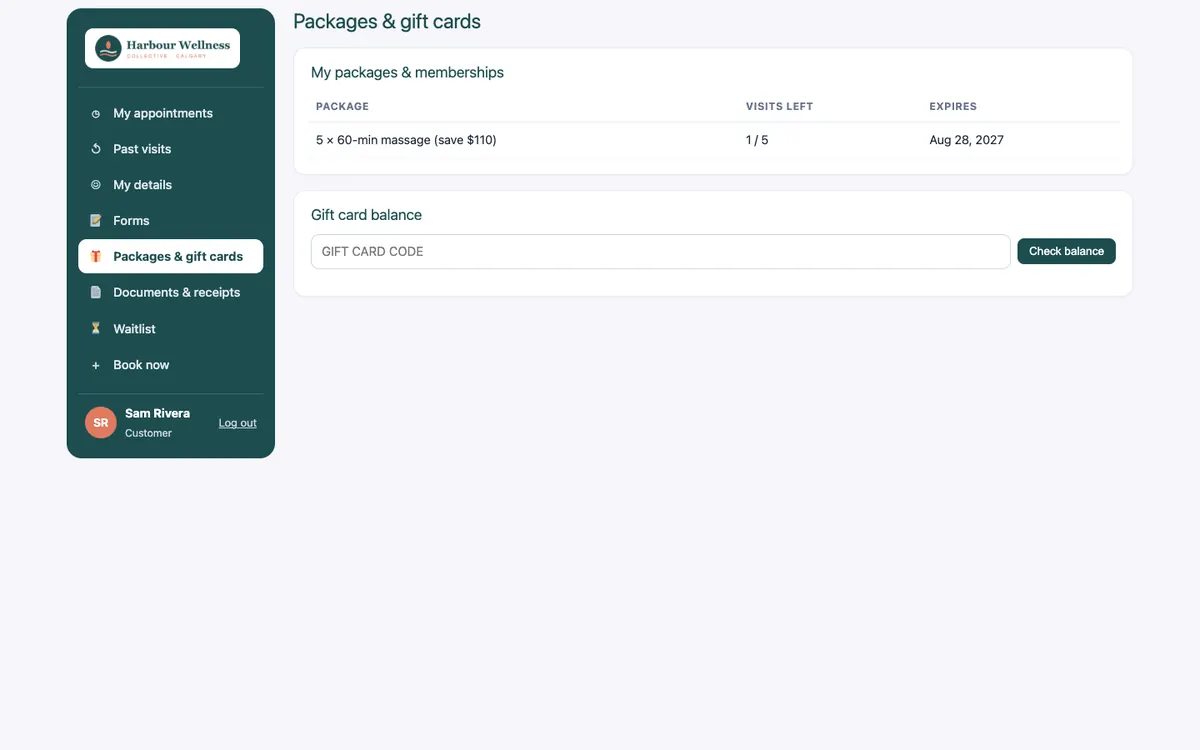
5Packages and gift cards
Packages, memberships and gift cards you’ve bought, with the visits or balance left.
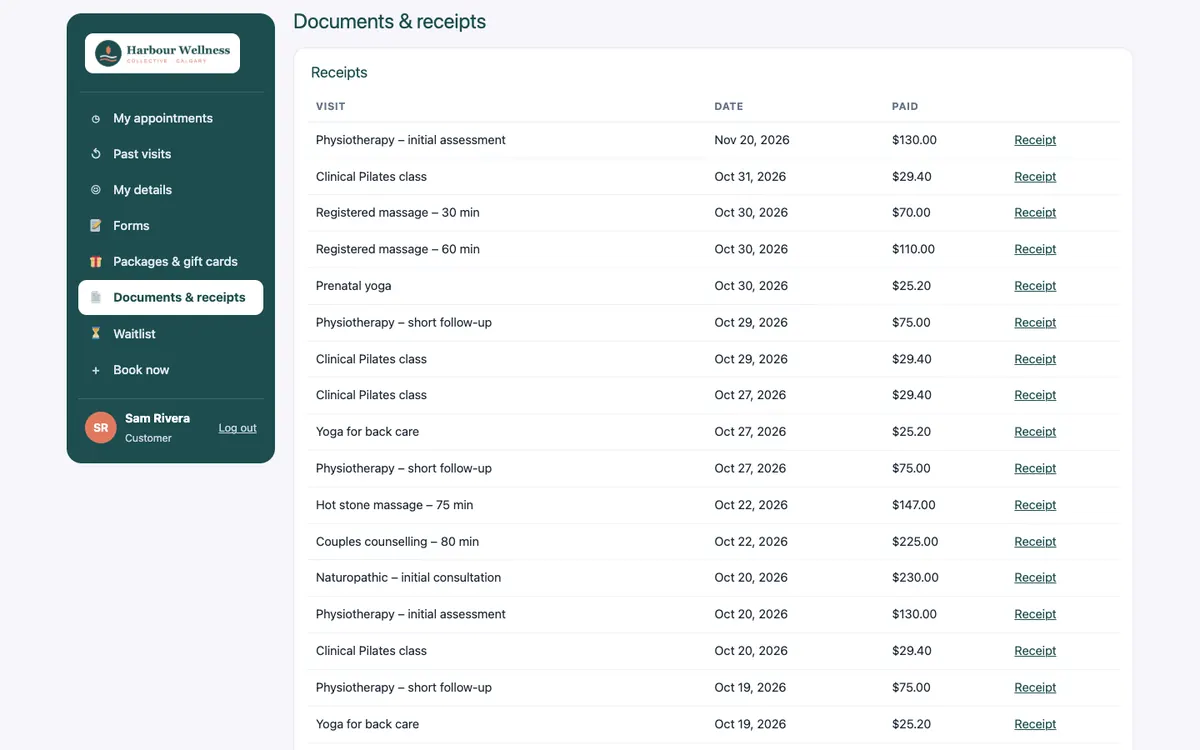
6Documents and receipts
Official receipts for your insurance and any documents the practice shares with you.
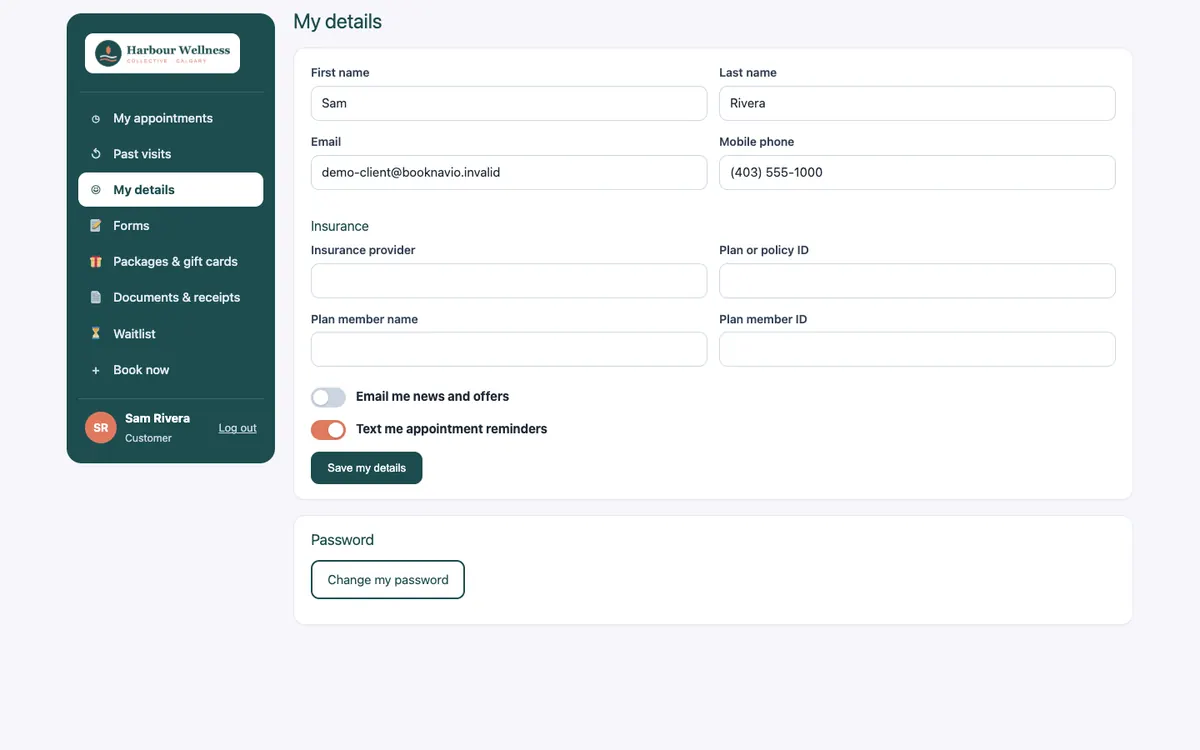
7My details
Update your name, phone, address, insurance details, newsletter and text preferences, and your password.
Screenshots are from the BookNavio demo; your own screens show your business.
 BookNavio